ValU Payment Method Flow
Learn how your customers can complete payments using ValU Buy Now Pay Later through a seamless, installment-based checkout experience.
introduction
The ValU payment method provides your customers with a flexible Buy Now Pay Later (BNPL) option directly inside the FawryPay checkout. When a customer selects ValU as their preferred payment method during checkout, the FawryPay checkout plugin guides them through a short journey: selecting a suitable installment plan, verifying their ValU-registered mobile number with a one-time password (OTP), and confirming the order — all without leaving the checkout page.
This payment method is ideal for customers who hold an active ValU account and prefer to split their purchase amount into convenient monthly installments.
ValU using FawryPay Express Checkout Link API
In case you are still in development phase, you will need to call our API using POST at the following staging endpoint API point URL
Meanwhile, whenever you are ready for production, you should use the following production API endpoint URL instead
Charge Request JSON ObjectClient-side
The Charge Request JSON object is the main object that holds all your client’s transaction details. The structure of that object is described hereafter.
                    function buildChargeRequest() {
                                const chargeRequest = {
                                                merchantCode: '1tSa6uxz2nRbgY+b+cZGyA==',
                                                merchantRefNum: '2312465464',
                                                customerMobile: '01xxxxxxxxx',
                                                customerEmail: 'email@domain.com',
                                                customerName: 'Customer Name',
                                                customerProfileId: '1212',
                                                paymentExpiry: '1631138400000',
                                                language : "en-gb",
                                                chargeItems: [
                                                        {
                                                            itemId: '6b5fdea340e31b3b0339d4d4ae5',
                                                            description: 'Product Description',
                                                            price: 50.00,
                                                            quantity: 2,
                                                            imageUrl: 'https://developer.fawrystaging.com/photos/45566.jpg',
                                                        },
                                                        {
                                                            itemId: '97092dd9e9c07888c7eef36',
                                                            description: 'Product Description',
                                                            price: 75.25,
                                                            quantity: 3,
                                                            imageUrl: 'https://developer.fawrystaging.com/photos/639855.jpg',
                                                        },
                                                ],
                                                returnUrl: 'https://developer.fawrystaging.com',
                                                authCaptureModePayment: false,
                                                signature: "2ca4c078ab0d4c50ba90e31b3b0339d4d4ae5b32f97092dd9e9c07888c7eef36"
                                            };
                       return chargeRequest;
                    }
In case you allowed shipping and customer choose shipping address from your application side, you will
need to udate the chargeRequest to include the selected shipping address as follows:
                    function buildChargeRequest() {
                                const chargeRequest = {
                                                merchantCode: '1tSa6uxz2nRbgY+b+cZGyA==',
                                                merchantRefNum: '2312465464',
                                                customerMobile: '01xxxxxxxxx',
                                                customerEmail: 'email@domain.com',
                                                customerName: 'Customer Name',
                                                customerProfileId: '1212',
                                                paymentExpiry: '1631138400000',
                                                language : "en-gb",
                                                chargeItems: [
                                                        {
                                                            itemId: '6b5fdea340e31b3b0339d4d4ae5',
                                                            description: 'Product Description',
                                                            price: 50.00,
                                                            quantity: 2,
                                                            imageUrl: 'https://developer.fawrystaging.com/photos/45566.jpg',
                                                        },
                                                        {
                                                            itemId: '97092dd9e9c07888c7eef36',
                                                            description: 'Product Description',
                                                            price: 75.25,
                                                            quantity: 3,
                                                            imageUrl: 'https://developer.fawrystaging.com/photos/639855.jpg',
                                                        },
                                                ],
                                                selectedShippingAddress: {
                                                            governorate: 'GIZA', //Governorate code at Fawry
                                                            city: 'MOHANDESSIN', //City code at Fawry
                                                            area: 'GAMETDEWAL', //Area code at Fawry
                                                            address: '9th 90 Street, apartment number 8, 4th floor',
                                                            receiverName: 'Receiver Name'
                                                },
                                                returnUrl: 'https://developer.fawrystaging.com',
                                                authCaptureModePayment: false,
                                                signature: "2ca4c078ab0d4c50ba90e31b3b0339d4d4ae5b32f97092dd9e9c07888c7eef36"
                                            };
                       return chargeRequest;
                    }
If the merchant wants to allow only one payment method through this transaction,
just send payment method code in chargeRequest. This will be the only
displayed payment option event merchant allow any other payment methods. You will need to
the following key into your chargeRequest:
                    function buildChargeRequest() {
                                const chargeRequest = {
                                                merchantCode: '1tSa6uxz2nRbgY+b+cZGyA==',
                                                merchantRefNum: '2312465464',
                                                customerMobile: '01xxxxxxxxx',
                                                customerEmail: 'email@domain.com',
                                                customerName: 'Customer Name',
                                                customerProfileId: '1212',
                                                paymentExpiry: '1631138400000',
                                                language : "en-gb",
                                                chargeItems: [
                                                        {
                                                            itemId: '6b5fdea340e31b3b0339d4d4ae5',
                                                            description: 'Product Description',
                                                            price: 50.00,
                                                            quantity: 2,
                                                            imageUrl: 'https://developer.fawrystaging.com/photos/45566.jpg',
                                                        },
                                                        {
                                                            itemId: '97092dd9e9c07888c7eef36',
                                                            description: 'Product Description',
                                                            price: 75.25,
                                                            quantity: 3,
                                                            imageUrl: 'https://developer.fawrystaging.com/photos/639855.jpg',
                                                        },
                                                ],
                                                paymentMethod: 'VALU',
                                                returnUrl: 'https://developer.fawrystaging.com',
                                                authCaptureModePayment: false,
                                                signature: "2ca4c078ab0d4c50ba90e31b3b0339d4d4ae5b32f97092dd9e9c07888c7eef36"
                                            };
                       return chargeRequest;
                    }
Charge Request JSON Object parameters' description
| Parameter | type | Required | Description | |
|---|---|---|---|---|
| merchantCode | String |
required | The merchant code provided by FawryPay | |
| merchantRefNum | String |
required | The merchant's transaction reference number | |
| customerMobile | String |
optional | The customer mobile in merchant system: 01xxxxxxx. | |
| customerEmail | String |
optional | The customer e-mail in merchant system: test@email.com. | |
| customerName | String |
optional | The customer name in merchant system. | |
| customerProfileId | Integer |
optional | The unique customer profile ID in merchant system. This can be the user ID. | |
| language | String |
required | Language: "ar-eg" - "en-gb". This key will control the language of the notification message to the customer | |
| paymentExpiry | Timestamp |
optional | Use this element to set specific expiration time for the generated order. After this time, the received reference number shall expire and the client will not be able to pay using it. This element take value as timestamp in the format of date in milliseconds, e.g. 1631138400000. | |
| chargeItems
|
||||
| itemId | String |
required | The unique product identifier. | |
| description | String |
optional | Description of charge item. | |
| price | Decimal |
required | Price per unit charge item. | |
| quantity | Decimal |
required | Quantity of the charge items. | |
| imageUrl | URL String |
optional | URL of the product image to be displayed to the client at checkout. | |
| selectedShippingAddress
optional If set, all sub-keys are required. Only supported if merchant profile allows shipping. |
||||
| governorate | String |
required | Governorate code at FawryPay system, see here. | |
| city | String |
required | City code at FawryPay system, see here. | |
| area | String |
required | Area code at FawryPay system, see here. | |
| address | String |
required | Receiver address: 9th Ahmed Basha St., apartment number 8, 4th floor. | |
| receiverName | String |
required | Name of shipment receiver person. | |
| paymentMethod | String |
optional | Payment Method: 'CashOnDelivery', 'PayAtFawry', 'MWALLET', 'CARD' or 'VALU'. | |
| returnUrl | URL String |
required | After the the checkout process, this will be the redirection URL where your customer will be redirected to. Example: "https://www.google.com/" | |
| orderWebHookUrl | URL String |
optional | WebHook Url used to notify your application back end when an event happens in this order like order paid , expired or refund for more details about the request message please check Server To Server Notification V2 | |
| saveCardInfo | Boolean |
optional | it is used to save the card to the specified customerProfileId provided in order to be used in the future payments without collectind card data each time | |
| authCaptureModePayment | Boolean |
optional | Set to "true" to enable authenticate and capture payment option. | |
| signature | String |
required | To avoid the request from being edited by the customer use the request signature by concatenate the following elements on the same order and hash the result using SHA-256 "merchantCode + merchantRefNum + customerProfileId (if exists, otherwise insert "") + returnUrl + itemId + quantity + Price (in tow decimal format like ‘10.00’) + Secure hash key | |
Response Parameters
FawryPay Sample Response
Whenever you call FawryPay Express Checkout Link API, Fawry will respond to you with the redirect URL that you have to redirect your customer to.
Sample FawryPay Express Checkout Link API Response
When redirecting your client to the received payment URL, your client will receive the following checkout form, check the following steps to complete the payment process.
How It Works
Once the customer selects ValU as the preferred payment method, the checkout process transitions to a simple five-step flow:
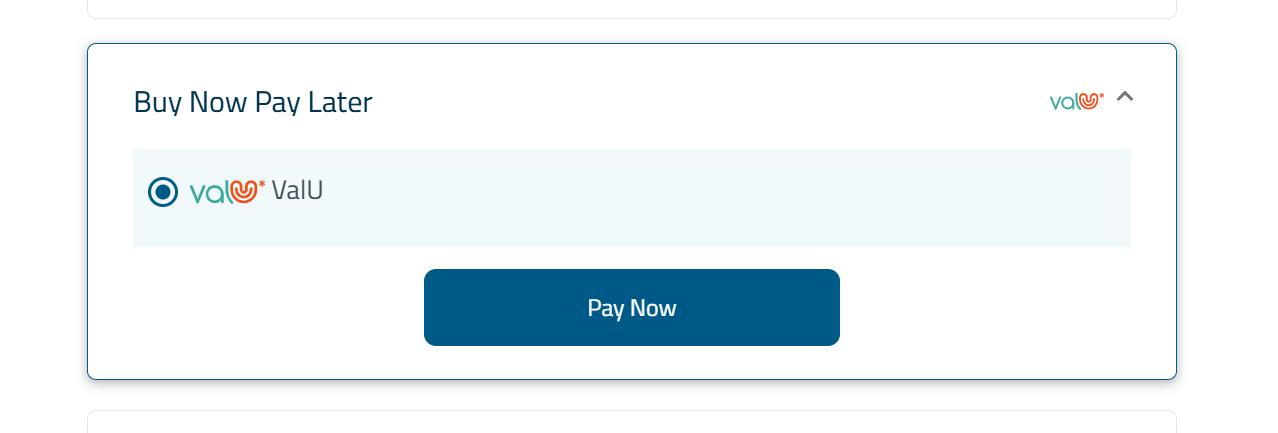
Step 1 — Select ValU as the Payment Method
On the checkout screen, the customer expands the Buy Now Pay Later section, selects ValU, then clicks the Pay Now button to start the ValU installment journey.
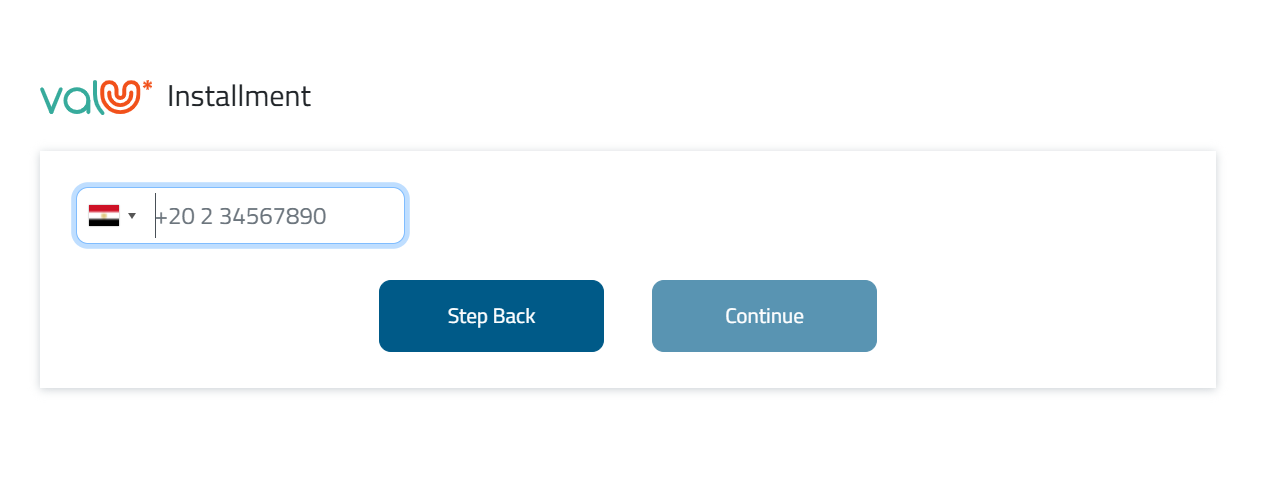
Step 2 — Enter the Mobile Number
The customer enters the mobile number registered with their ValU account, then clicks Continue.
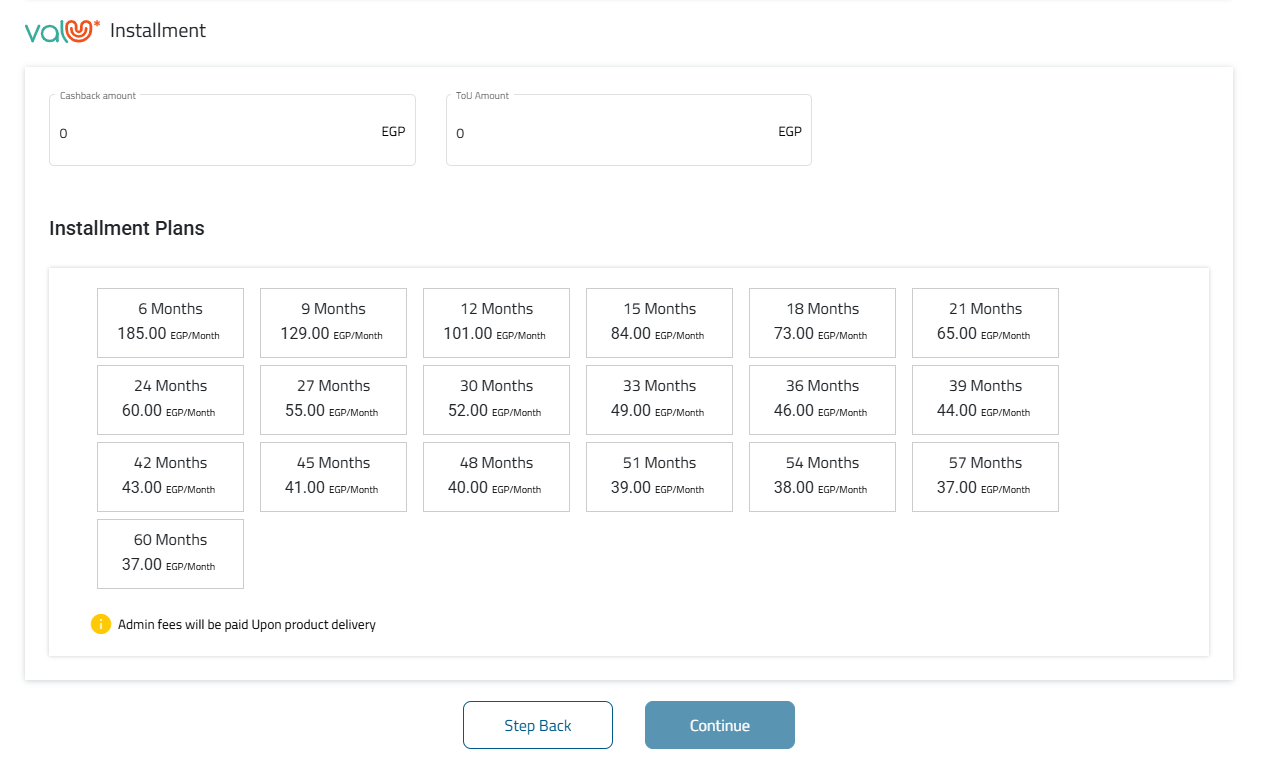
Step 3 — Choose an Installment Plan
The plugin displays all installment plans available for the order amount. Each plan shows the tenor in months alongside the corresponding monthly installment amount (EGP/Month). When applicable, the screen also displays the Cashback amount and ToU Amount associated with the transaction. The customer selects the preferred plan and clicks Continue.
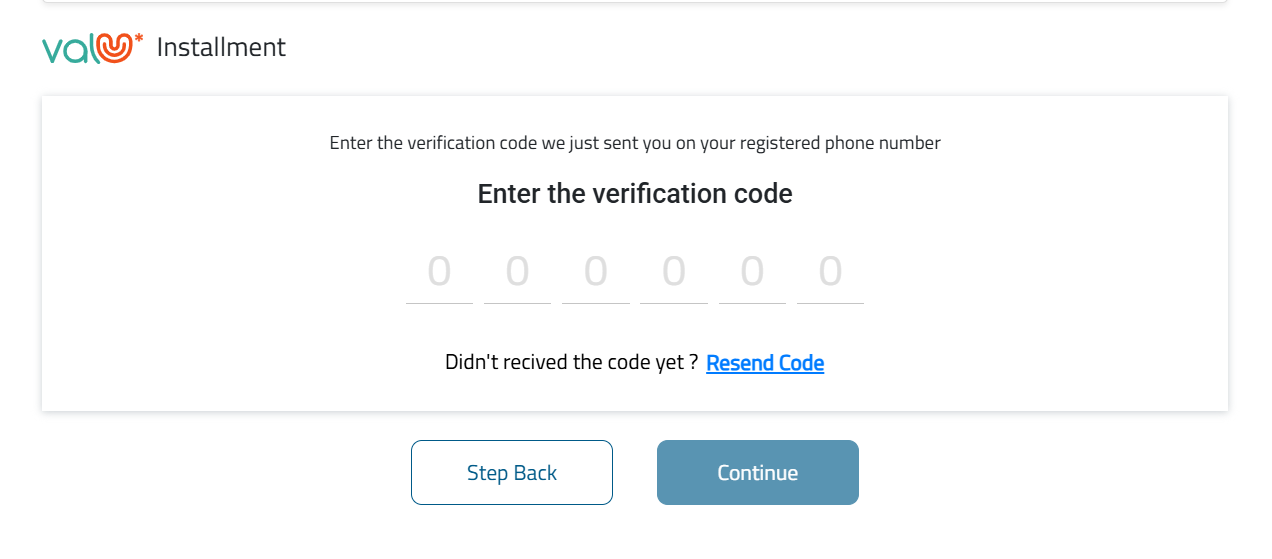
Step 4 — Verify with OTP
A 6-digit verification code is sent to the customer's registered phone number. The customer enters the code to authorize the transaction and clicks Continue. If the code does not arrive, the customer can request a new one using the Resend Code link.
Step 5 — Order Confirmation
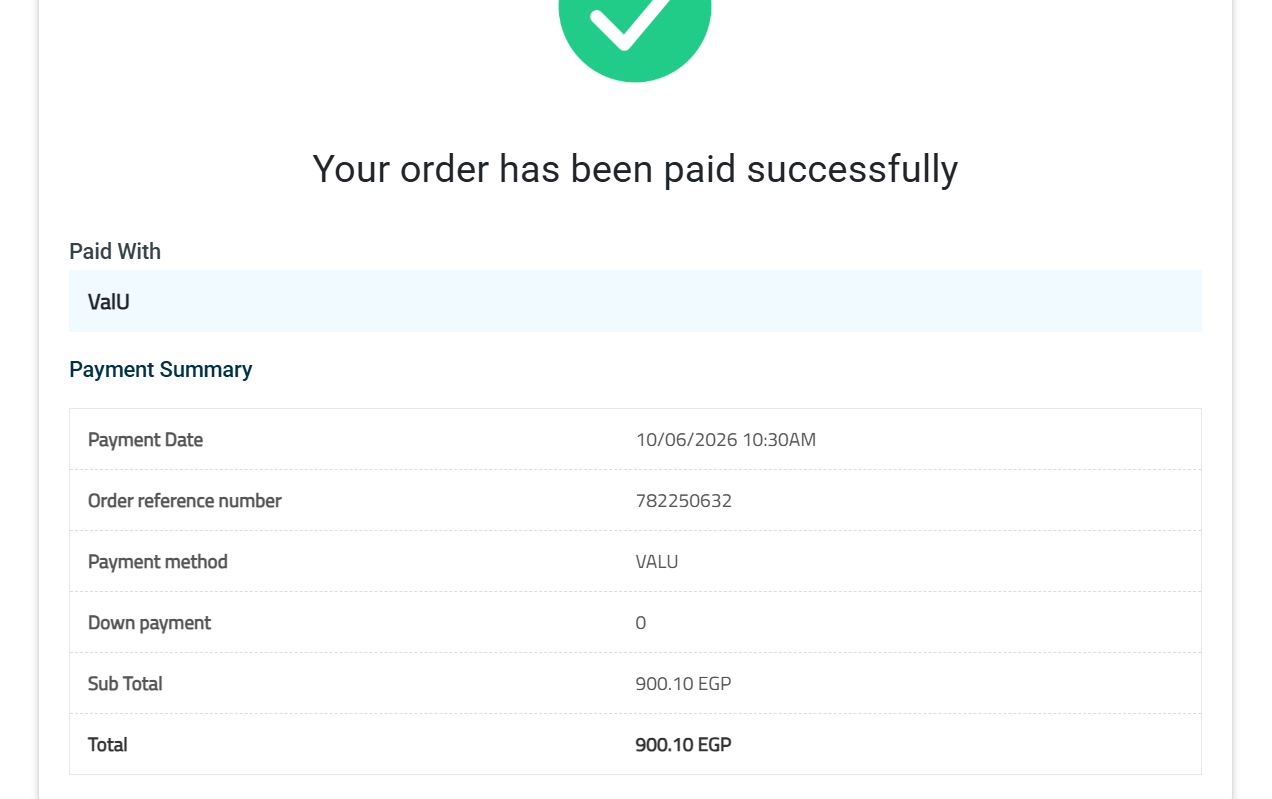
Once the OTP is verified, the payment is completed and the customer lands on the confirmation screen showing that the order has been paid successfully with ValU, along with the full Payment Summary — payment date, order reference number, payment method, down payment, and totals.
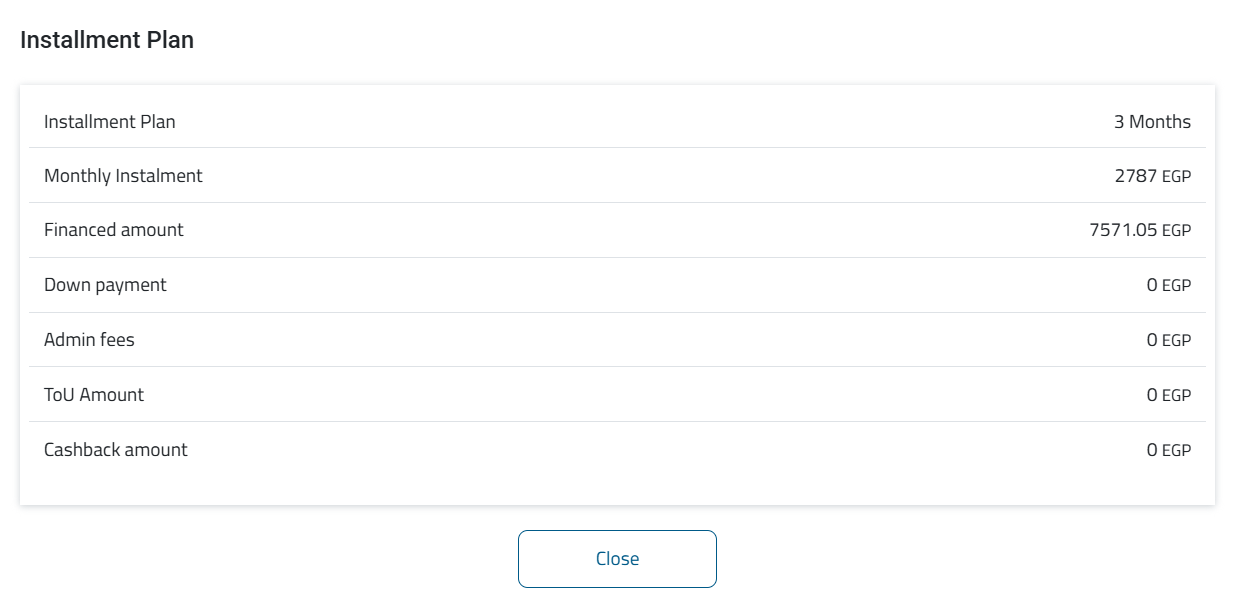
The customer can also review the full details of the selected Installment Plan — tenor, monthly installment, financed amount, down payment, admin fees, ToU amount, and cashback amount.
Handling Charge Response
Whether you choose to go with FawryPay Checkout Button or Checkout Link integration solutions, you will end up with sending us your charge request. The exact details of the response of our FawryPay plugin response are explained in this page. Two possible outcomes are to happen whenever a client issue a payment through FawryPay checkout form, Successful or Failed payment process.
Successful Payment Response
In case of successful payment process, FawryPay checkout plugin shall redirect the user to the merchant’s defined return URL associated with the charge request (Learn More) with the following sample response at the header of the redirected page:
Illustration of the URL parameters:
Detailed Description of Charge Response Parameters
| Arguments | type | Description | example |
|---|---|---|---|
| type | String |
Type of response. | ChargeResponse |
| referenceNumber | String |
FawryPay issued transaction reference number. | 963455678 |
| merchantRefNumber | String |
Merchant issued transaction reference number. This is the same as the reference number you have set in your charge request. | 9990d0642040 |
| orderAmount | Decimal |
Order amount in two decimal places format. | 20.00 |
| paymentAmount | Decimal |
The paid amount in two decimal places format. | 20.00 |
| fawryFees | Decimal |
The payment processing fees. | 1.00 |
| paymentMethod | String |
Payment Method Selected by your client. | 'CashOnDelivery', 'PayAtFawry', 'MWALLET', 'CARD' or 'VALU' |
| orderStatus | String |
Order Status. | PAID |
| paymentTime | Integer |
Timestamp to record when the payment has been processed. | 1607879720568 |
| customerMobile | String |
Customer Mobile Number. | 01234567891 |
| customerMail | String |
Customer E-mail address. | example@email.com |
| customerProfileId | String |
Customer Profile ID in the merchant's system. | 1212 |
| signature | String |
Response Signature generated as the SHA-256 of the following concatenated string (referenceNumber (if exist) + merchantRefNum + paymentAmount (in two decimal places format 10.00) + orderAmount (in two decimal places format 10.00) + orderStatus + paymentMethod + fawryFees (if exist) (in two decimal places format 10.00)) + shippingFees (if exist) (in two decimal places format 10.00)) + authNumber (if exists) + customerMail (if exist) + customerMobile (if exist) + secureKey) | 2df2943c6704176809ba6d559e2906b3d4df14916d6 |
| statusCode | String |
Response status code. | 200 |
| statusDescription | String |
Response status description. | Operation done successfully |
Failed Payment Response
In case of failed payment process, FawryPay checkout plugin shall redirect the user to the merchant’s return URL, as defined in the charge request, URL with only the status code and description at the header of the redirected page:
Illustration of the URL parameters:
Next steps
Extend your Integration
Was this page helpful?
Thank you for helping improve FawryPay's documentation. If you need help or have any questions, please consider contacting support.